

Understanding Seat Based Billing
Seat Based Billing allows you to set a per-seat price for your product and let customers purchase multiple seats. This is particularly useful for team-based products, enterprise software, or any service where pricing scales with the number of users. Seat Based Billing in Creem works for both One Time Payments and Subscriptions seamlessly without any special setup.Key Concepts
Per-Seat Pricing
In Seat Based Billing:- Base Price: Set in the Creem dashboard as the price per individual seat
- Units: Represents the number of seats being purchased
- Total Price: Automatically calculated as (Base Price × Units)
Implementation
To implement Seat Based Billing:- Create a product in your Creem dashboard where the price is the base seat price
- Generate a checkout session with the desired number of seats using the
unitsparameter - Direct your customer to the checkout URL
- Next.js
- TypeScript SDK
- Better Auth
- REST API
Next.js SDK Documentation
Learn more about the Next.js adapter and advanced features.
Managing Seat Changes
You can manage seat quantities for your customers in subscriptions by:- Adding seats: Modify the subscription through the dashboard or update subscription API
- Reducing seats: Modify the subscription through the dashboard or update subscription API
Programmatically Update Seats
You can add or reduce seats in a subscription programmatically using the Creem API.1
Get the subscription details
First, retrieve the subscription to get the subscription item ID:
- TypeScript SDK
- REST API
2
Update the seat count
Use the subscription item ID to update the number of seats:
- TypeScript SDK
- REST API
Update Behavior Options: -
proration-charge-immediately: Calculate proration and charge
immediately - proration-charge: Calculate proration and charge at next billing cycle -
proration-none: No proration, just update the seat countManual subscription changes through the Creem Dashboard
You can also modify subscription seats through your Creem Dashboard as a merchant. Simply click on a subscription, and upon the details sheet opening, click on the “Modify Subscription” button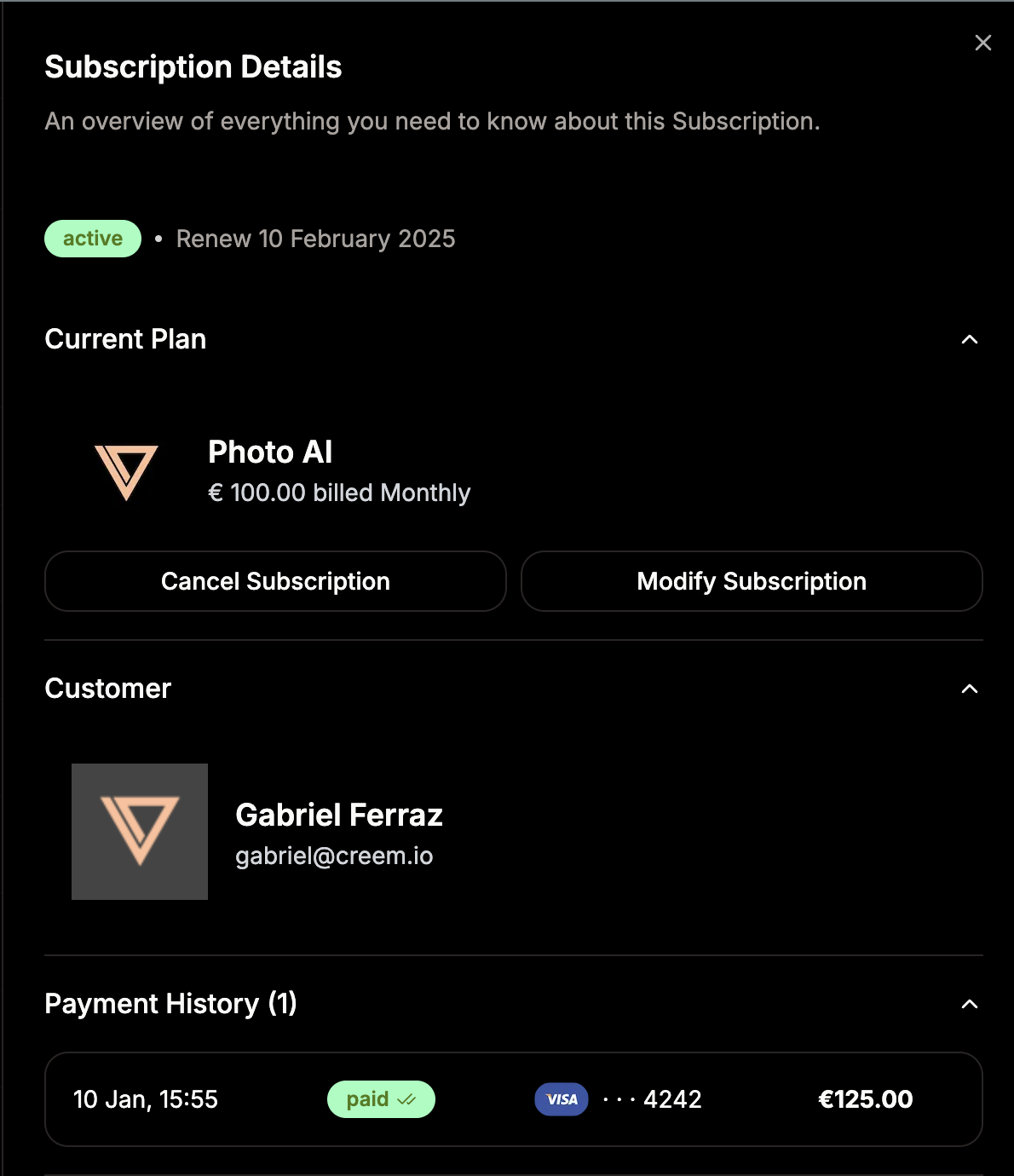
Billing after subscription updates
The new amount will be charged upon subscription renewal. If you need pro-rata charges or different use cases, contact the Creem team.Troubleshooting Update Errors: If you receive a 404 error with the message “Could not find
product or price” when updating subscription seats, ensure you’re providing either a valid
price_id or product_id in your request. The price_id is recommended as it provides the most
specific reference for validation.